MSSQL
Configuration Adjustments
The SQL scripts required for the Orchestra installation are located on the Orchestra CD in the directory:
...\Database\MSSQLServer_Other\system
-
Start Microsoft SQL Server Management Studio.
-
Log in as user SA.
-
Open V01__sys_create_schema_orchestra.sql.
-
Change the paths for data and logfile storage to match your local system:
/****** Object: Database [ORCHESTRA] ******/CREATE DATABASE [ORCHESTRA] ON PRIMARY( NAME = N'ORCHESTRA'FILENAME = N'C:\Programme\Microsoft SQLServer\MSSQL10_50.SQLEXPRESS\MSSQL\DATA\ORCHESTRA.mdf' ,SIZE = 51200KB , MAXSIZE = UNLIMITED, FILEGROWTH = 1024KB )LOG ON( NAME = N'ORCHESTRA_log',FILENAME = N'C:\Programme\Microsoft SQLServer\MSSQL10_50.SQLEXPRESS\MSSQL\DATA\ORCHESTRA_log.ldf' ,SIZE = 10240KB , MAXSIZE = 2048GB , FILEGROWTH = 10%)COLLATE Latin1_General_CI_ASwarningThe password for the ORCHESTRA database user should be changed for security reasons.
-
Run the script.
-
Close the database connection.
-
Open a new database connection and log in as User ORCHESTRA (password: ORCHESTRA).
-
Open and run the scripts 02 - XX.
If logging in as User ORCHESTRA does not work despite the corresponding user existing, this may be due to the installation of MS SQL Server.
The server must be configured to allow login via SQL Server authentication. Follow these steps to ensure proper configuration:
Configure Microsoft SQL Server for Mixed Mode Authentication (2005/2008/2012)
SQL Server employs a two-phase security authentication approach. First, the user authenticates to the server. Once the user is within the server environment, access to individual databases is granted. SQL Server stores all login information in the master database.
There are two authentication methods:
- Windows authentication mode
- Mixed mode
To enable Mixed Mode Authentication, follow these steps:
-
Open Microsoft SQL Server Management Studio.
-
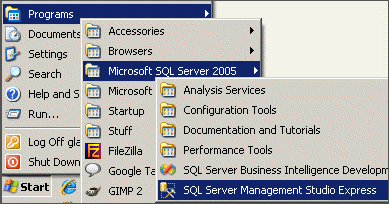
Click Start, Programs, Microsoft SQL Server 2005, and select SQL Server Management Studio Express or SQL Server Management Studio, depending on your version of SQL Server.
-
Enter the requested information (Server Type, Server Name, Authentication) and connect.
-
Right-click your < server name > and select Properties.
-
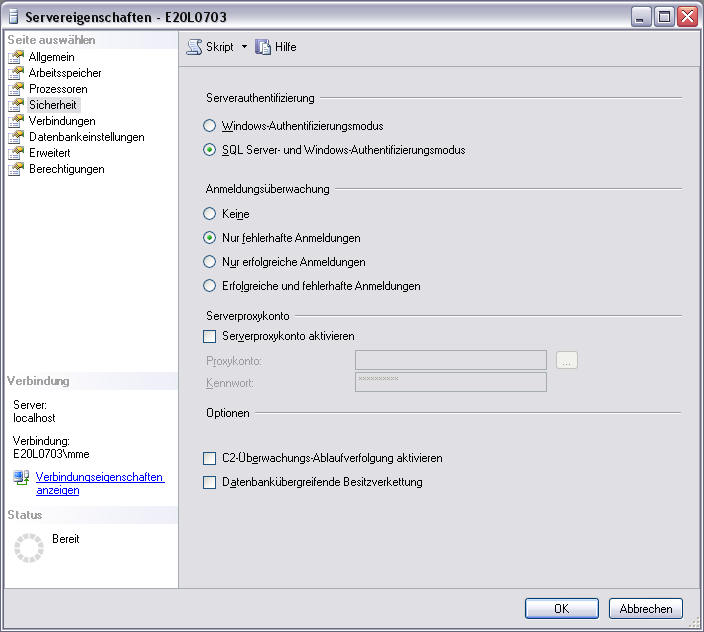
Select Security.
-
Under Server authentication, select SQL Server and Windows Authentication Mode.
-
Click OK.
-
Right-click the server name and select Restart. Wait a few moments for the service to restart.
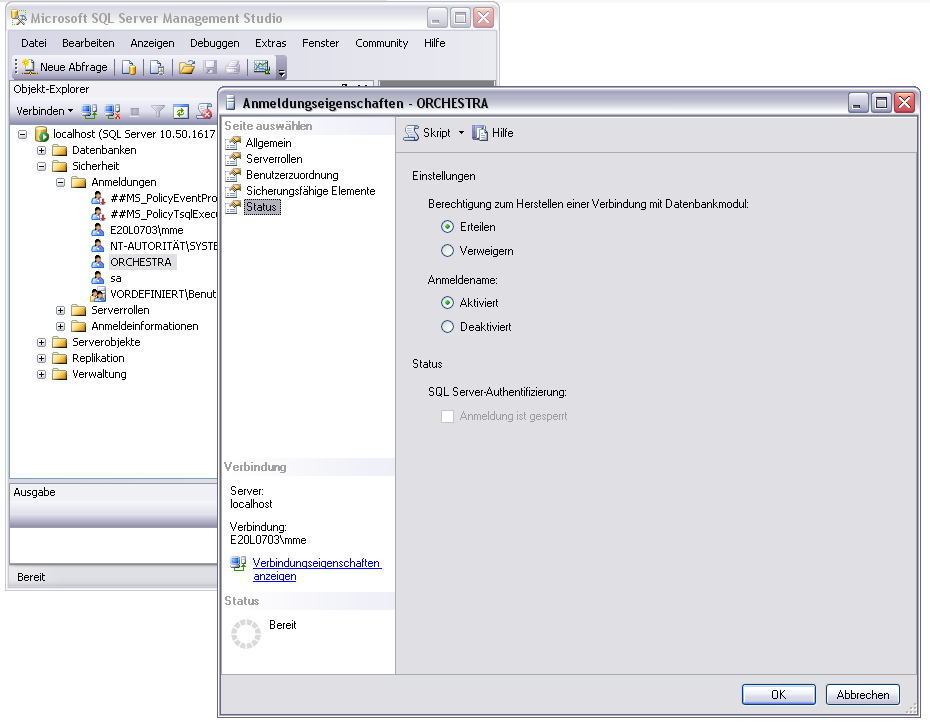
Notice: If the login with your SQL user does not work, check the user's privileges. The user must have been granted the right to connect to the Database Engine. See the figure below:
Configuring the Snapshot Settings in Microsoft SQL Server
The isolation level in Microsoft SQL Server differs from that of other databases. To ensure that there is no open database connection, the snapshot settings must be adjusted. You can configure these settings either through an SQL statement or manually.
Further information about snapshot isolation can be found on Snapshot Isolation in SQL Server | Microsoft Learn.
Configuring the Snapshot Settings via SQL Statement
-
Open Microsoft SQL Server Management Studio.
-
Connect to the Database Engine.
-
On the Standard bar, click New Query.
-
Add the following text to the query window:
ALTER DATABASE CURRENT SET ALLOW_SNAPSHOT_ISOLATION ONGOALTER DATABASE CURRENT SET READ_COMMITTED_SNAPSHOT ON WITH NO_WAITGO -
Click Execute.
Configuring the Snapshot Settings Manually
-
Open Microsoft SQL Server Management Studio.
-
Connect to an instance of the SQL Server Database Engine through the Object Explorer and expand that instance.
-
Right-click on the database and click on Properties.
-
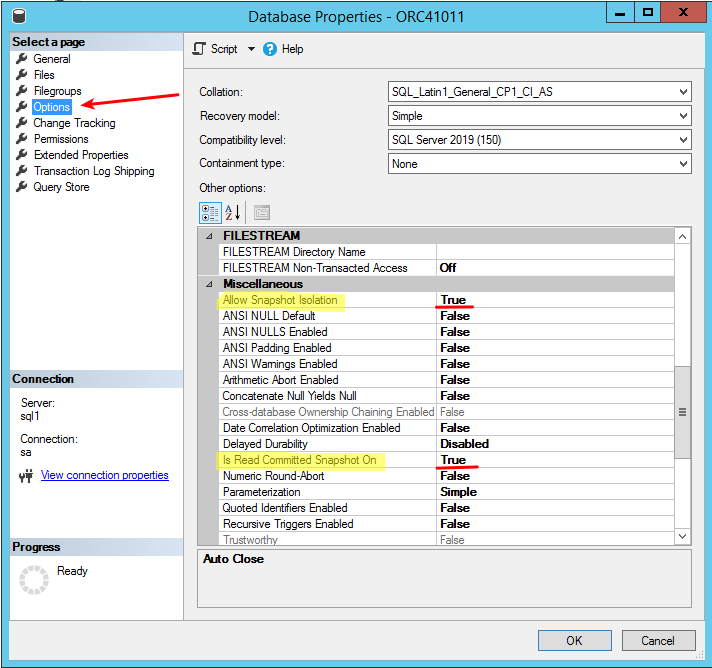
Go to the Options page and set 'Allow Snapshot Isolation' and 'Is Read Committed Snapshot On' to True.
-
Click OK to save the settings.
Check the TCP/IP Settings of SQL Server
-
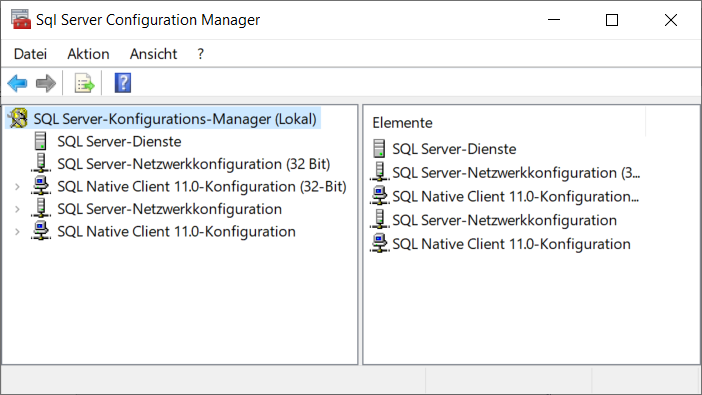
Start the SQL Server Configuration Manager (part of your SQL Server installation).
-
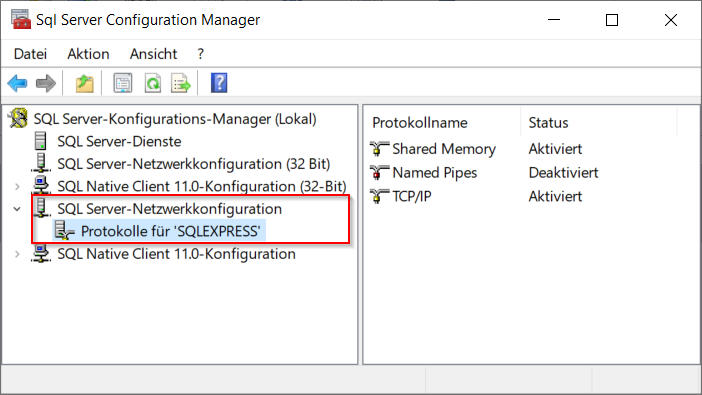
Select the SQL Server Network Configuration option in the left pane.
-
Ensure that the TCP/IP entry in the right area is activated. If it is not activated, right-click and choose Activate.
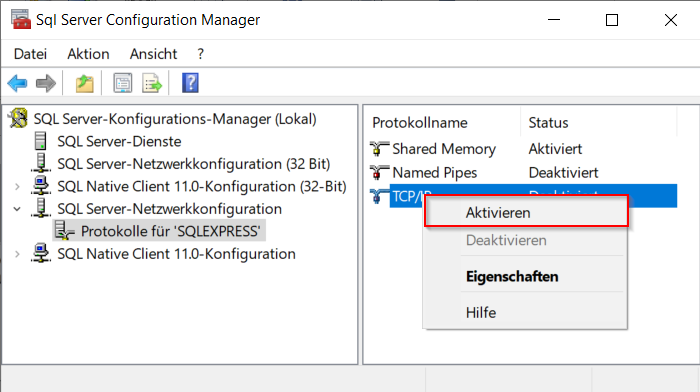
The default TCP/IP port used by SQL Server is 1433.